Manage in the UI
You can inspect and edit the semantic layer directly from the source detail page in Motley. Open a source from the Sources page to access its configuration. The page has three tabs: Files (file-based sources only), Tables, and Models.
Tables
The Tables tab shows every table Motley discovered during ingestion. Select a table in the left panel to see its columns on the right.
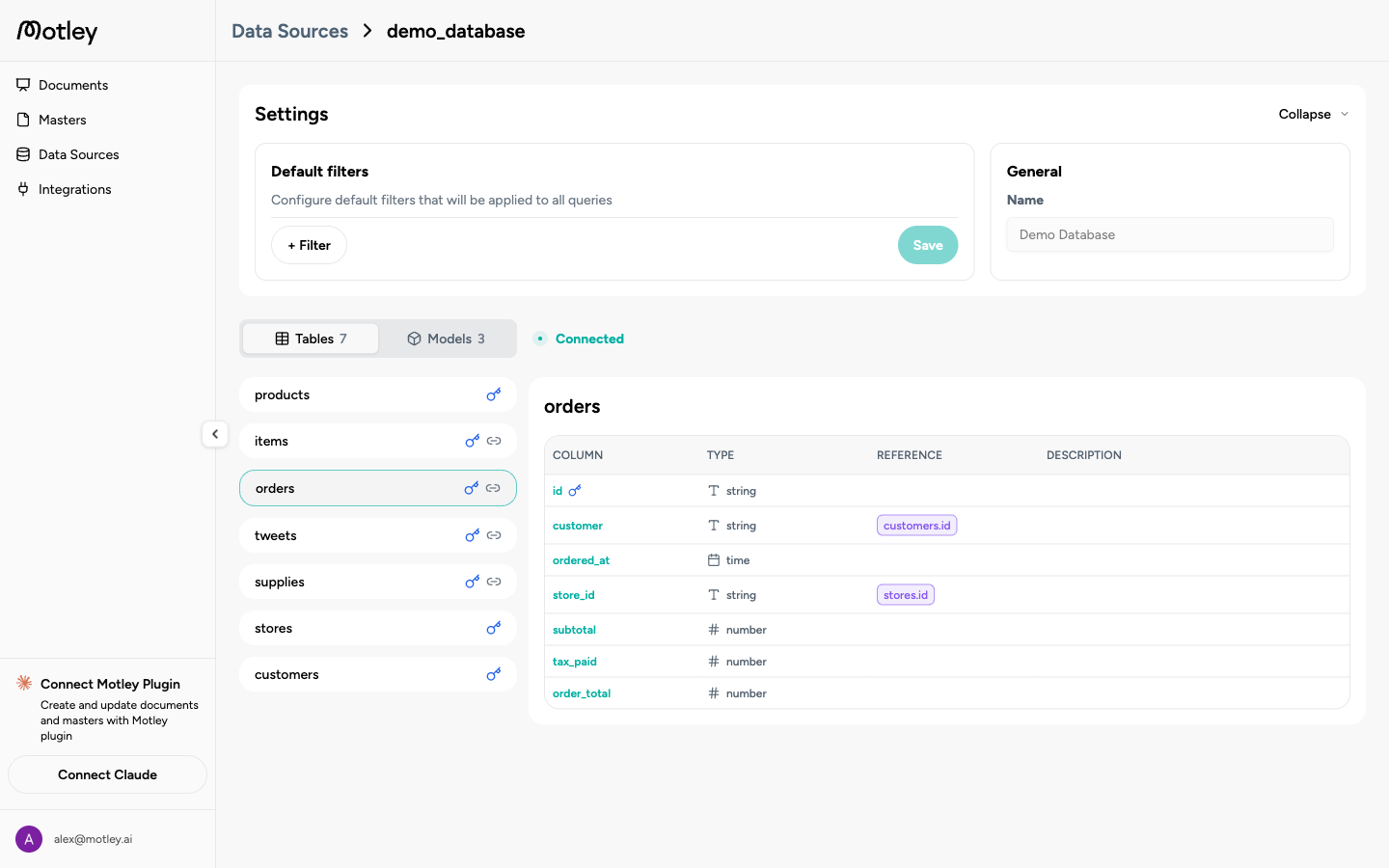
Each column shows:
- Name and whether it is a primary or foreign key
- Type: integer, number, string, timestamp, etc.
- Reference: if the column is a foreign key, which table and column it points to
- Description: a plain-language label you can add to help an agent understand what the column represents
Tables are read-only. Review the list to confirm Motley detected your schema correctly. If tables are missing, trigger a re-ingest from the source settings.
Models
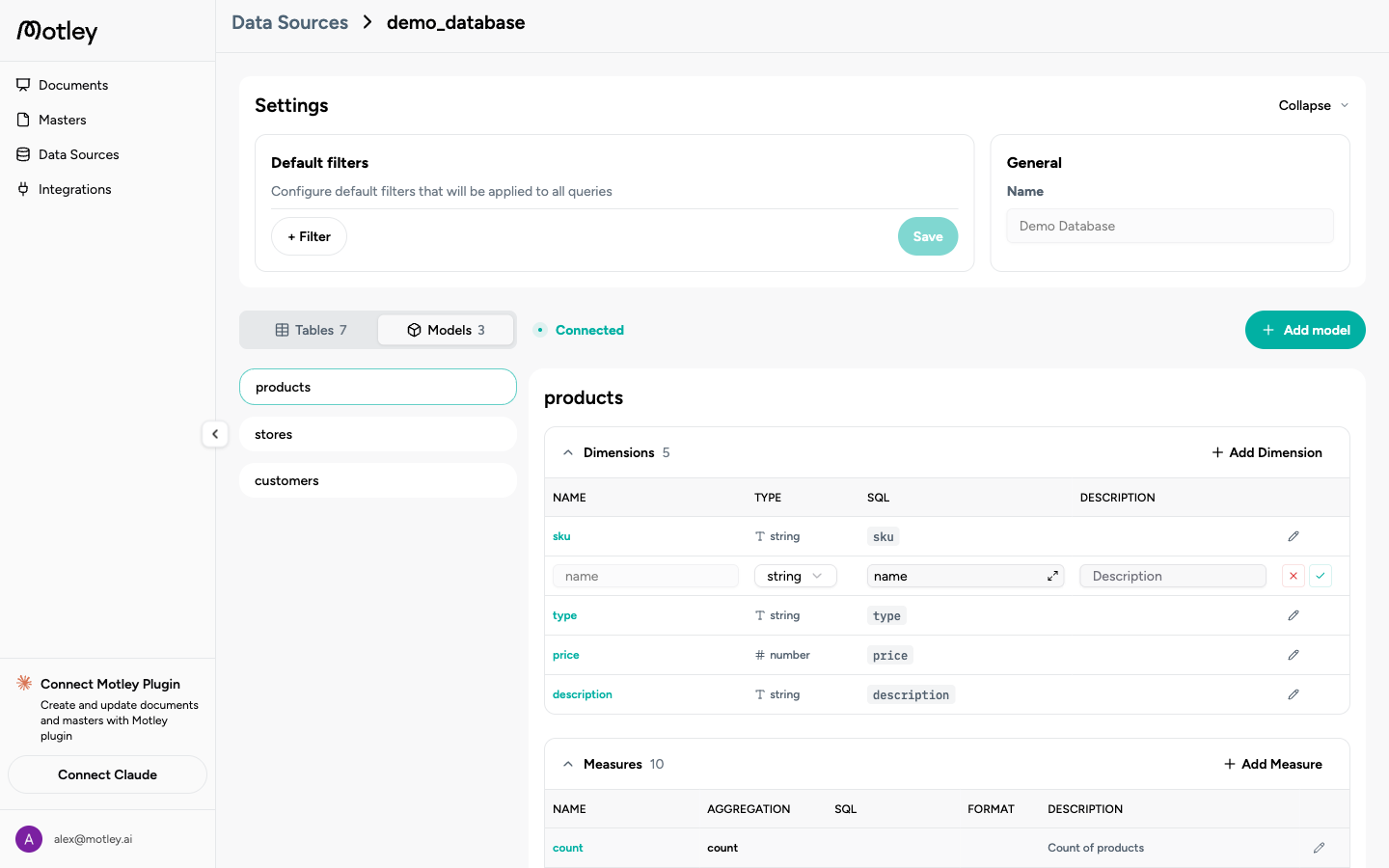
The Models tab lists all models for the source. Select a model in the left panel to see its dimensions and measures, and the SQL or table it's based on.
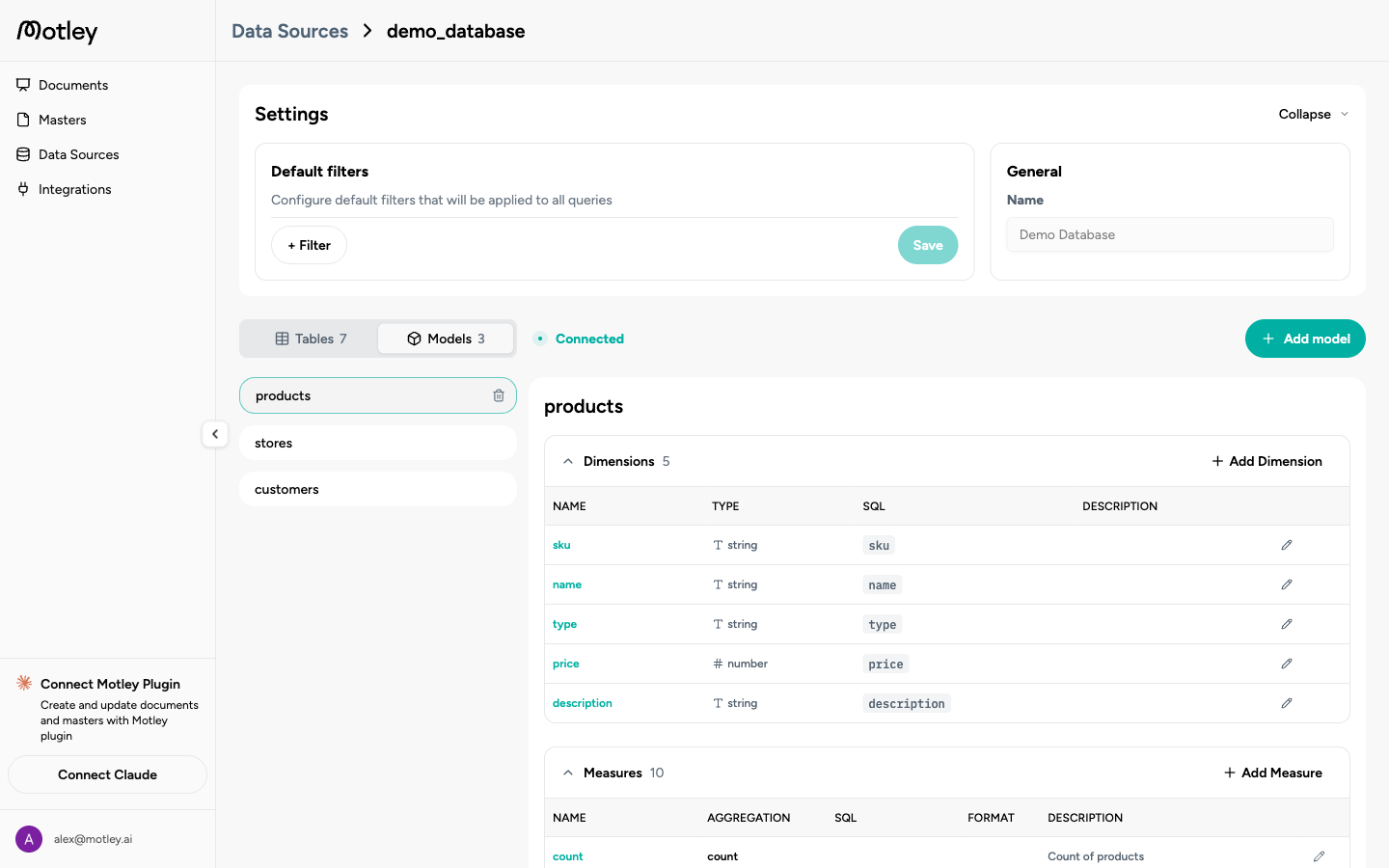
Creating a model
Click Add model to open the model wizard. Two creation modes:
From SQL: write a SQL query that defines the data view. Motley will validate it against your database before saving.
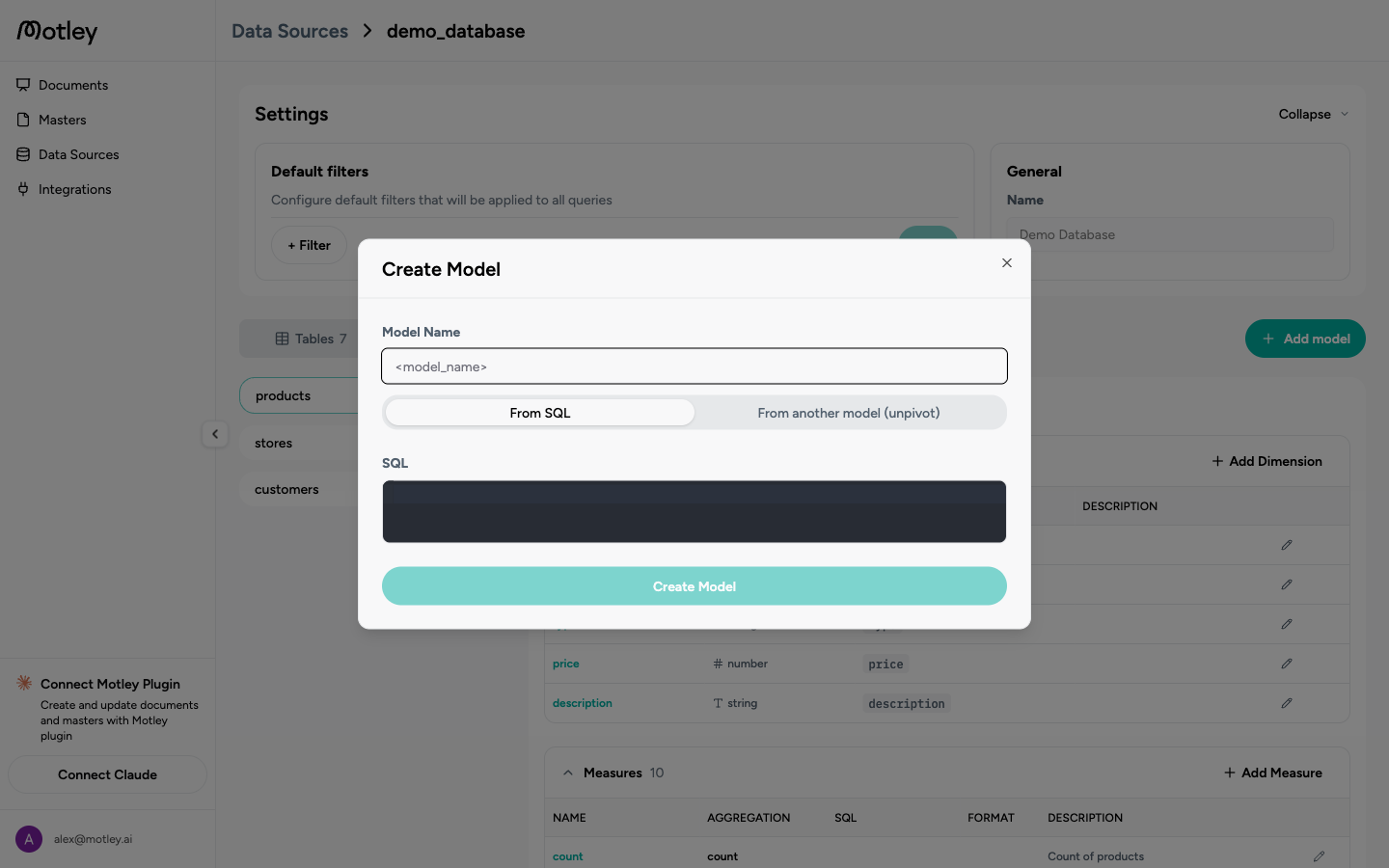
Unpivot: transforms a wide-format model into a long-format one. For an existing model, specify which columns hold values and which hold category labels to create a reshaped view.
Dimensions
Dimensions are the attributes you group, filter, and slice data by.
| Field | Description |
|---|---|
| Name | Identifier used in queries and by an agent |
| Type | string, number, or time |
| SQL | The column or SQL expression that computes this dimension |
| Description | Plain-language explanation for an agent |
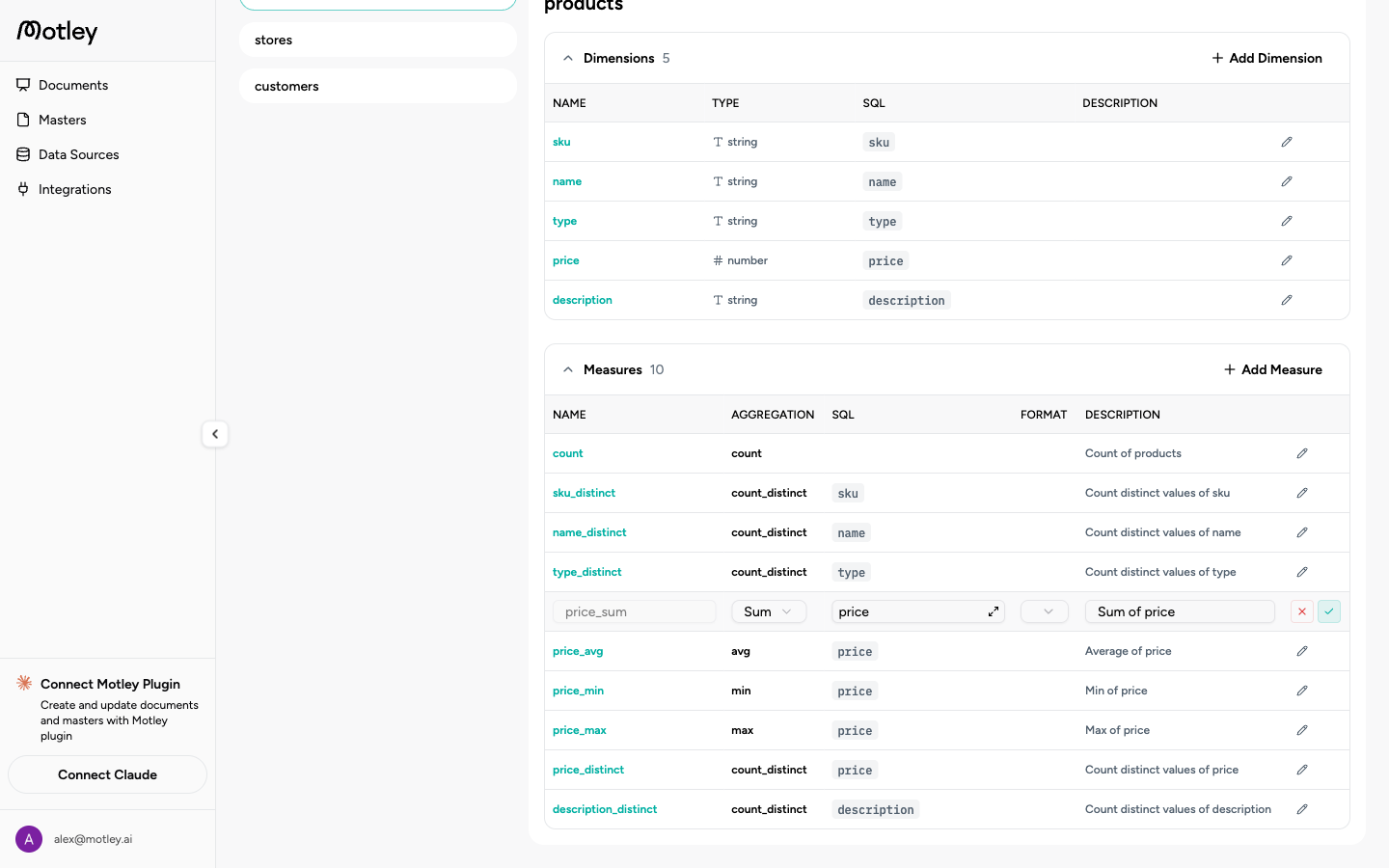
Click the pencil icon on any dimension row to edit it inline. Changes take effect immediately for new document generations.
Measures
Measures are aggregated numeric values.
| Field | Description |
|---|---|
| Name | Identifier used in queries |
| Aggregation | sum, count, avg, countDistinct, min, max |
| SQL | The column or expression to aggregate |
| Format | integer, float, percent, or currency (with optional symbol) |
| Description | Plain-language explanation for an agent |
Click the pencil icon on any measure row to edit it inline.