Connecting a Database
Motley connects directly to MySQL and PostgreSQL databases. At document generation time Motley queries the database live, so your documents always reflect current data.
Before you connect
Create a read-only database user for Motley. Motley never writes to your database, and scoping the credentials to read-only limits exposure if they are ever compromised.
If your database is behind a firewall or a private network you need to allow inbound connections from Motley. Contact support@motley.ai for a list of IP addresses.
Connection steps
- Go to Sources and click Add Sources
- Select the Connect database tab
- Fill in the connection details and click Connect:
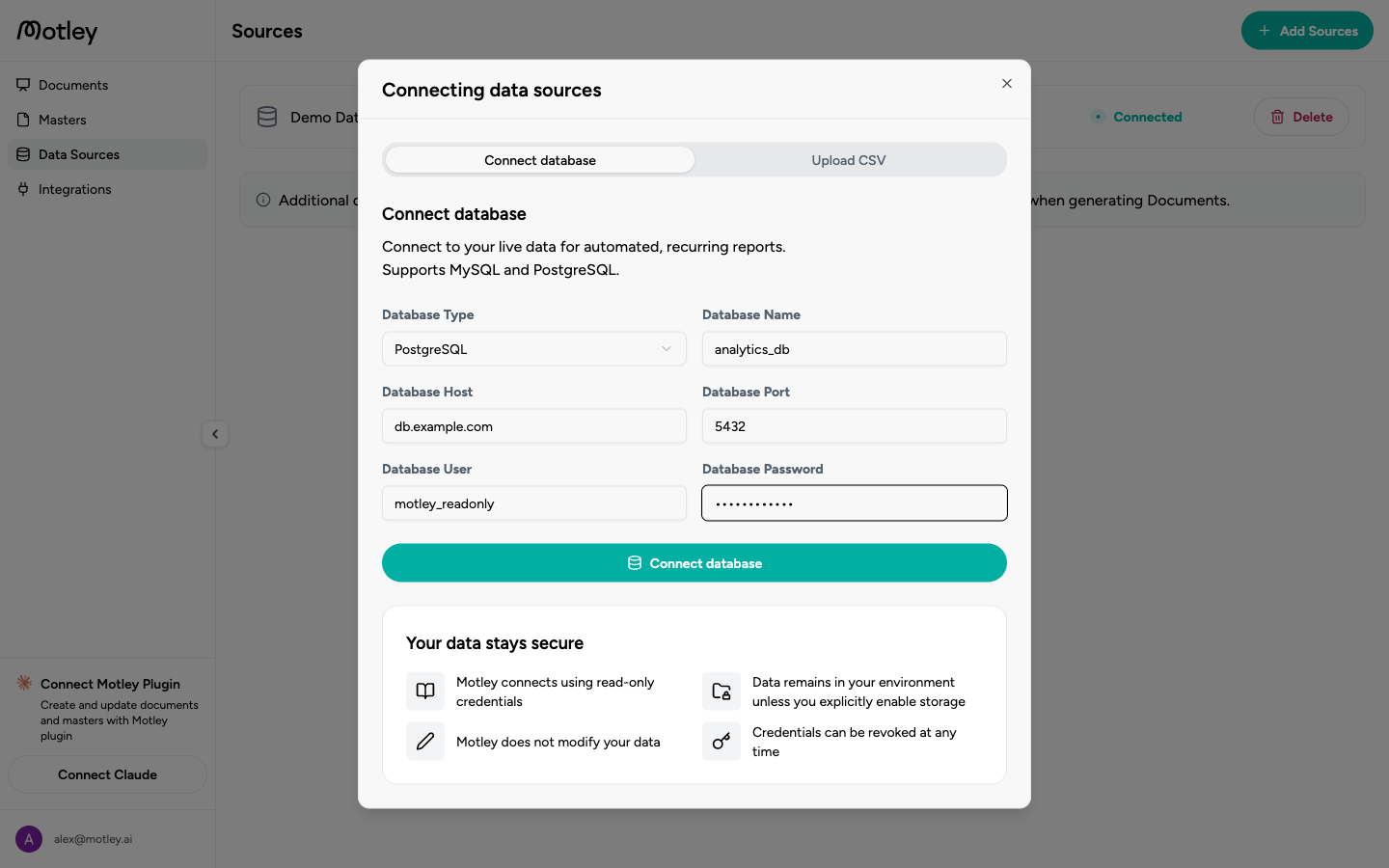
| Field | Description |
|---|---|
| Database type | Select your database type |
| Host | Server hostname or IP address |
| Port | Default: 5432 for PostgreSQL, 3306 for MySQL |
| Database name | The name of the specific database to connect |
| User | The read-only database username |
| Password | Password for that user |
Motley tests the connection immediately. If it succeeds, ingestion starts automatically and a status indicator will appear in the source list.
Ingestion
After connecting, Motley introspects your data and creates a semantic layer for it. This runs in the background and typically takes a couple of minutes.
Once ingestion is complete, you can open the source to review the semantic layer Motley has generated.
Disconnecting
Open the source row on the Sources page, click Delete, and confirm. This removes the connection and stored credentials from Motley. Your database is not affected.