Uploading Files
Motley accepts CSV and Excel files as data sources. Uploaded files are stored and queryable from any document.
Supported formats
- CSV (
.csv) - Excel (
.xls,.xlsx)
Upload steps
- Go to Sources and click Add Sources
- Select the Upload CSV tab
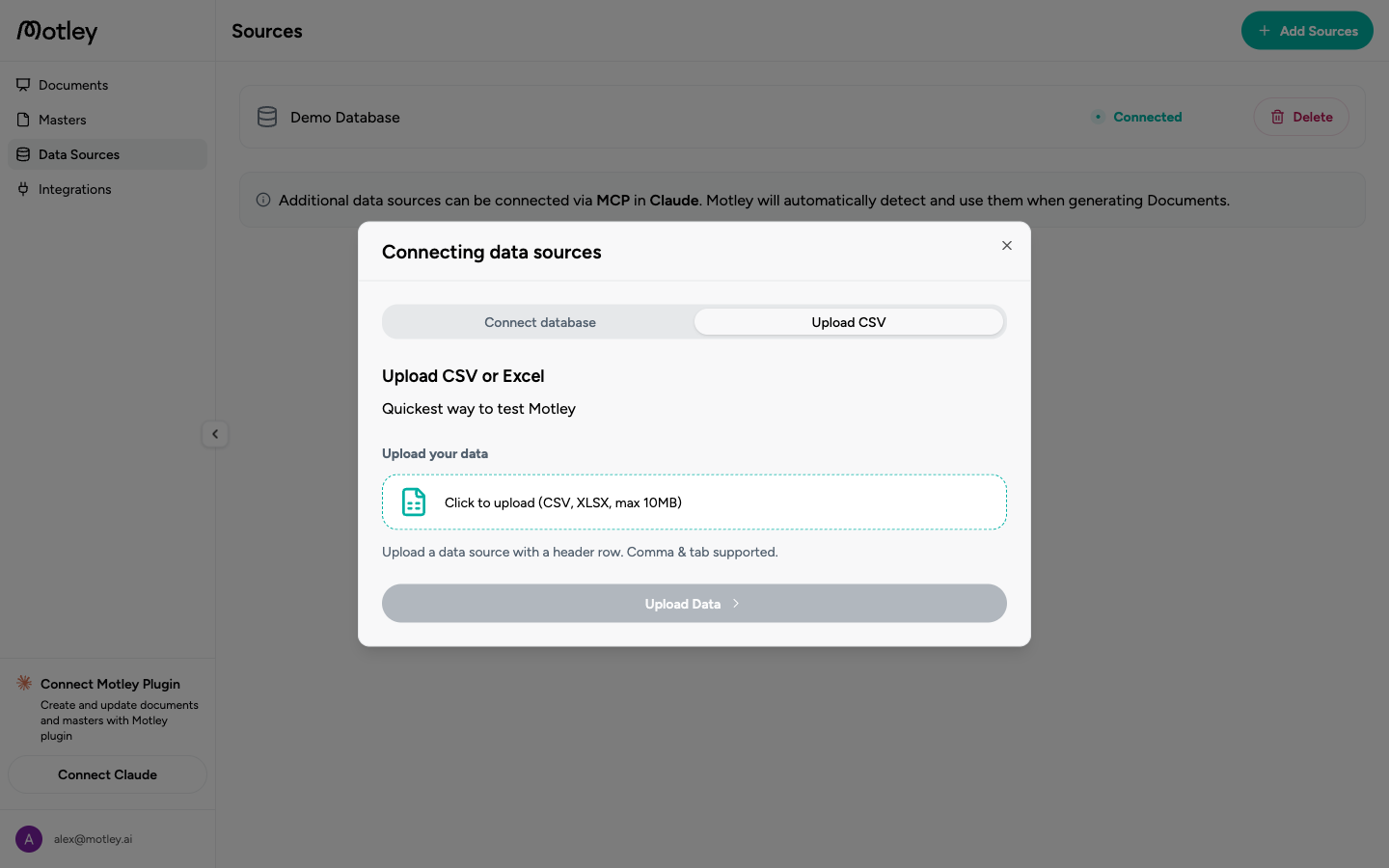
- Drag your file onto the upload area, or click to open the file picker
- Motley reads the file and presents a column configuration step
Configuring columns
After upload, Motley detects column names and types automatically. For each column you can:
- Set the name as it will appear in queries and models
- Choose the data type: text, number, date, and so on
Adjust any columns that were detected incorrectly, then save. The source appears on the Sources page and is immediately ready to use.
Adding more files
A single file-based source can hold multiple files. Open the source from the Sources page and click Add file to upload additional files into the same source. This is useful when your data arrives as periodic exports that you want to query together.
Updating a file
To replace the data in an existing file, open the source, delete the old file from the Files tab, and upload the new one.
Removing a source
Click Delete on the source row in the Sources page and confirm. This permanently removes the files and their data from Motley.