Installation
The plugin setup has two parts: installing the motley-skills plugin, and enabling the Motley MCP connector. Both are done inside Claude Cowork.
Part 1: Install motley-skills
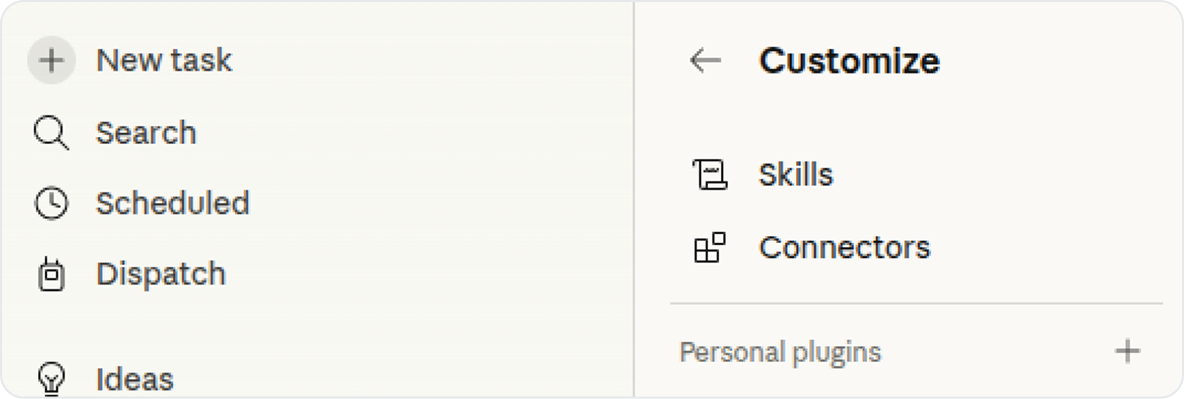
- In Claude, open Customize (top-right menu). Next to Personal Plugins, click +, then Create plugin → Add marketplace.
-
Paste the marketplace name (
MotleyAI/motley-skills) and click Sync: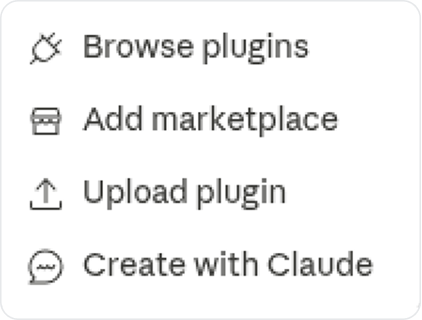
-
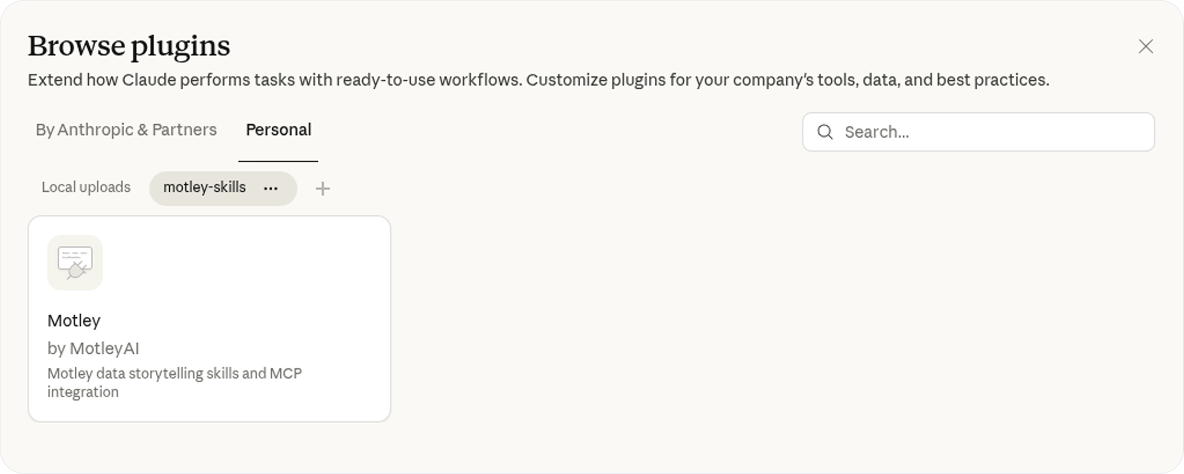
The Plugin directory opens. Go to the Personal tab and select motley-skills.
-
Hover over the plugin and click Install. Next to the motley-skills tab, open the … menu and enable Sync automatically to receive updates.
Part 2: Enable the Motley MCP connector
- In the Customize menu, open Motley → Connectors.
- Confirm the Motley connector (MCP server) is listed and shows as Connected.
- Set tool permissions to Always allow.
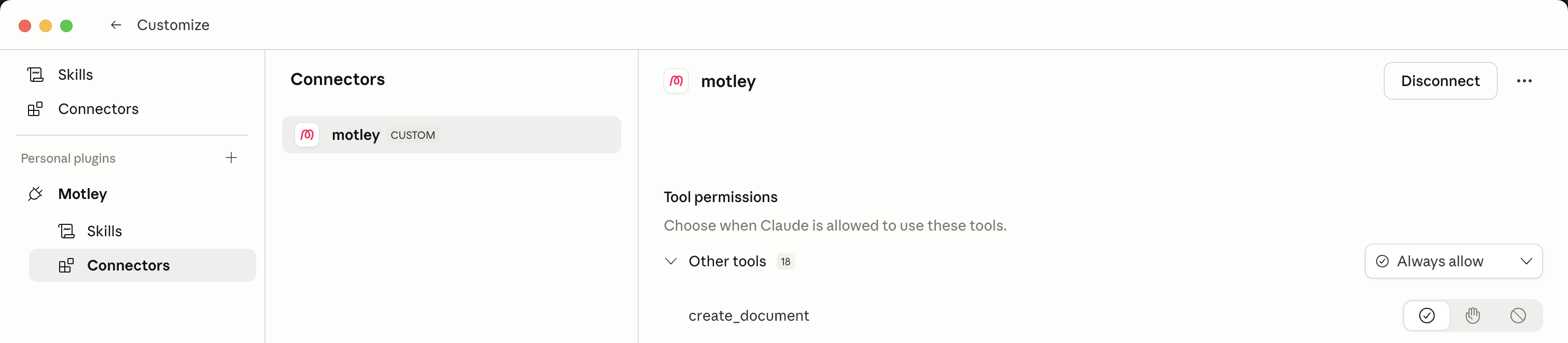
If the connector is not listed, add it manually using the connection URL from Settings → MCP Server in the Motley interface.
Verifying the setup
Start a new Claude conversation and try:
"List my Motley data sources."
Claude should respond with the sources on your Motley Sources page. If it does, the plugin is working.
Requirements
- A Motley account with at least one data source connected
- Access to Claude (claude.ai or Claude for Teams / Enterprise)